Geyser (Bedrock)
Let Bedrock Edition players (phones, tablets, consoles, Windows) join your Java server through Geyser, protected by Infinity-Filter.
Geyser lets Bedrock Edition players (phones, tablets, consoles, Windows) join a Java Edition server. With Infinity-Filter in front, Bedrock players connect to your Bedrock domain, Infinity-Filter filters their traffic on your dedicated IP, and only clean traffic reaches your Geyser server(s).
What you need
A dedicated IP Bedrock traffic always goes through your own dedicated IP on Infinity-Filter. See Step 1.
A Java backend Geyser translates Bedrock to Java, so your network must already have a Java backend before you add a Geyser one.
A recent Geyser build Build 1280 or later — ideally the latest. Older builds don't have the NetherNet settings Infinity-Filter needs.
A domain you control For example bedrock.example.com. Phones and tablets can only join with a domain, never with an IP.
Access to your server firewall The Geyser port must be open in both TCP and UDP.
How a Bedrock player reaches your server
You don’t need to understand networking to set this up, but knowing the path makes troubleshooting much easier:
- 1
The player types your Bedrock domain
For example bedrock.example.com on port 19132 (the Bedrock default). Your domain is a CNAME to your dedicated IP hostname, so it lands on Infinity-Filter.
- 2
Secure handshake (signaling, TCP)
The game first opens a short HTTPS connection to say hello. Infinity-Filter answers with the certificate of your domain (created automatically) and forwards the handshake to your Geyser, adding the player's real IP.
- 3
Game traffic (WebRTC, UDP)
Gameplay then flows over UDP through the same dedicated IP. Infinity-Filter filters it and forwards it to the same Geyser server.
- 4
Geyser talks to your Java server
Geyser translates the Bedrock connection and joins your Java proxy or server like a regular Java player.
A few words you’ll see on this page:
NetherNet The Bedrock connection method used since 26.60. It needs TCP (for the handshake) and UDP (for gameplay) on the same port.
RakNet The old Bedrock connection method (UDP only). Removed in 26.60.
Signaling The short handshake at the start of a NetherNet connection, over HTTPS. This is why your domain needs a certificate.
Dedicated IP A public IP reserved for your network on Infinity-Filter. Its hostname looks like {uid}.ip.infinity-filter.com.
Bedrock domain A hostname your players type (bedrock.example.com), declared in the panel so Infinity-Filter can create its certificate.
PROXY protocol (HAProxy) A small header Infinity-Filter adds to each connection so Geyser knows the player's real IP.
Why Bedrock needs a dedicated IP
Bedrock game traffic (UDP) doesn’t carry the hostname the player typed, so Infinity-Filter can’t tell networks apart by name the way it does for Java. Instead, each network with Bedrock gets its own IP: whatever arrives on that IP belongs to your network.
Step 1 — Order a dedicated IP
Follow the Dedicated IP order flow. Once it’s delivered, the Dedicated IP card at the top of Network → Backends shows its hostname — {uid}.ip.infinity-filter.com. That hostname (never the IP behind it) is what your DNS points to.
Step 2 — Add your Geyser backend(s)
Open Network → Backends, click Add backend, pick Module (Geyser, Votifier,…), then Geyser, and enter the IP and port of the machine running Geyser — the port is the one Geyser listens on (bedrock.port in its config).

Good to know:
- IP only, not a hostname. Module backends accept an IP (IPv4 or IPv6) and a port.
- Pick any free port for Geyser (for example
19200), as long as it’s not the port of your Java server: NetherNet needs that port in TCP too. Players never see this port — they always use 19132. - Transport. The first Geyser backend of a network lets you choose NetherNet (the default — keep it) or RakNet. RakNet only works with Geyser builds older than 1280. Every Geyser backend you add afterwards automatically uses the same transport as the existing ones.
- Up to 10 Geyser backends per network, all behind the same dedicated IP and domains. See Several Geyser servers.
- Each Geyser backend counts in your plan’s Module Backends quota.
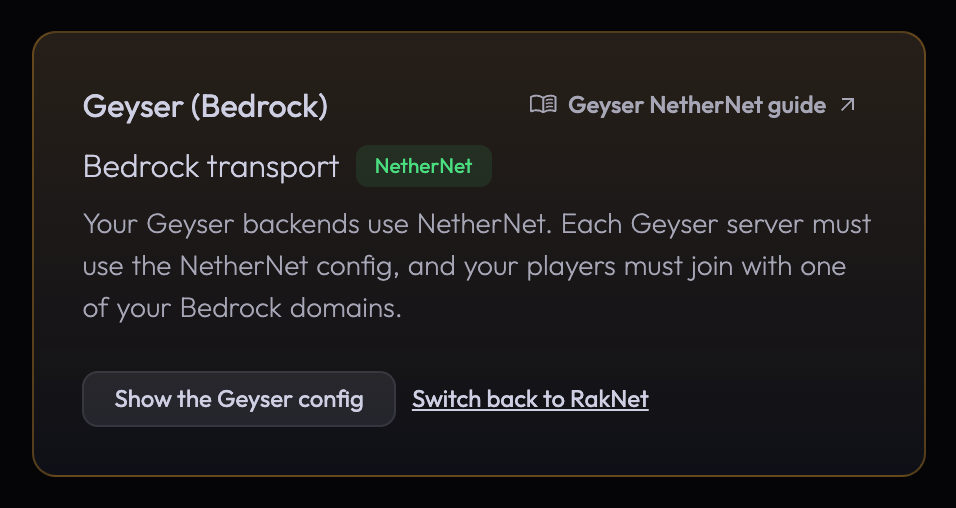
Once added, the Geyser (Bedrock) card appears on the right of the Backends page. It shows the transport of your Geyser backends and gives you the Geyser config to use.

Step 3 — DNS
At your DNS provider, create a CNAME record on the subdomain your Bedrock players will use, pointing to your dedicated IP hostname:
bedrock.example.com. 300 IN CNAME {uid}.ip.infinity-filter.com.
- Always a CNAME, never an A record with the IP: the IP behind your hostname can change, the hostname follows automatically.
- Use a subdomain (
bedrock,mobile,be,mcpe,play…). Most DNS providers don’t allow a CNAME on the root of a domain (example.com). - No proxy. On Cloudflare, the record must be DNS only (grey cloud). The orange cloud breaks Minecraft and prevents the certificate from being created.
- No SRV record — Bedrock doesn’t use them.
- One hostname, one CNAME. Your Java domain (CNAME to a
front-*hostname) and your Bedrock domain (CNAME to the dedicated IP) must be different hostnames, for exampleplay.example.comandbedrock.example.com.
You can point several names at the same hostname (for example bedrock.example.com and mobile.example.com); each one is a separate Bedrock domain in the next step.
Step 4 — Add your Bedrock domain in the panel
Open Network → Domains and the Bedrock domains tab. The DNS setup card, on the right, shows the hostname to point your CNAME to — click the field to copy it.
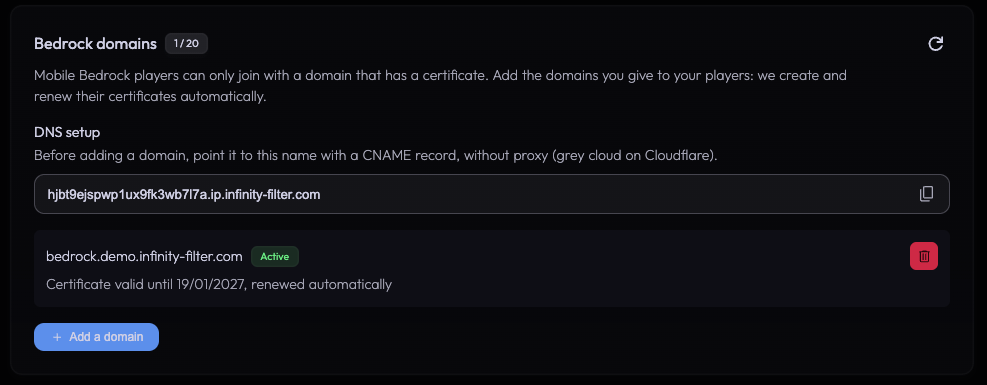
Click Add a domain, type your domain (for example bedrock.example.com) and confirm. Infinity-Filter checks that the domain points to your tunnel, then creates its certificate — usually in a few seconds. The domain then shows Active with the certificate’s expiry date. Certificates are renewed automatically; you never have to do anything.
If the DNS isn’t ready yet, the panel tells you exactly which record to create:
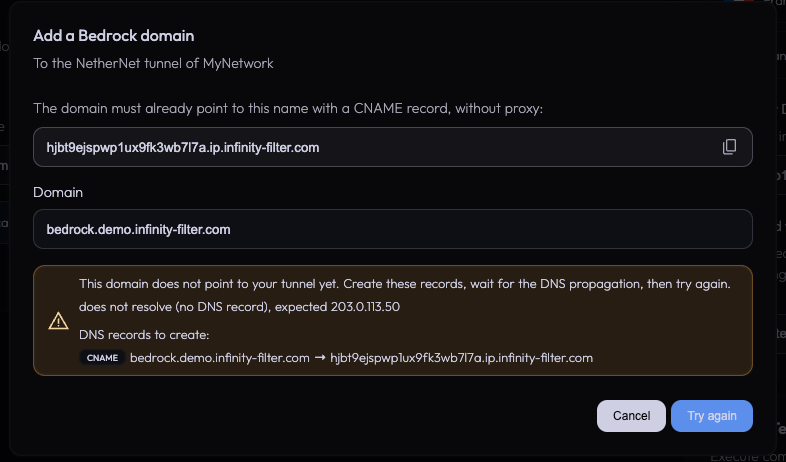
Statuses, wildcard domains (*.example.com), limits and errors are all explained on the Bedrock domains page.
Step 5 — Configure Geyser
On the Backends page, click Show the Geyser config in the Geyser (Bedrock) card (or How to install? on a Geyser backend). The panel gives you the config with your port and your dedicated IP already filled in, plus the important rules:
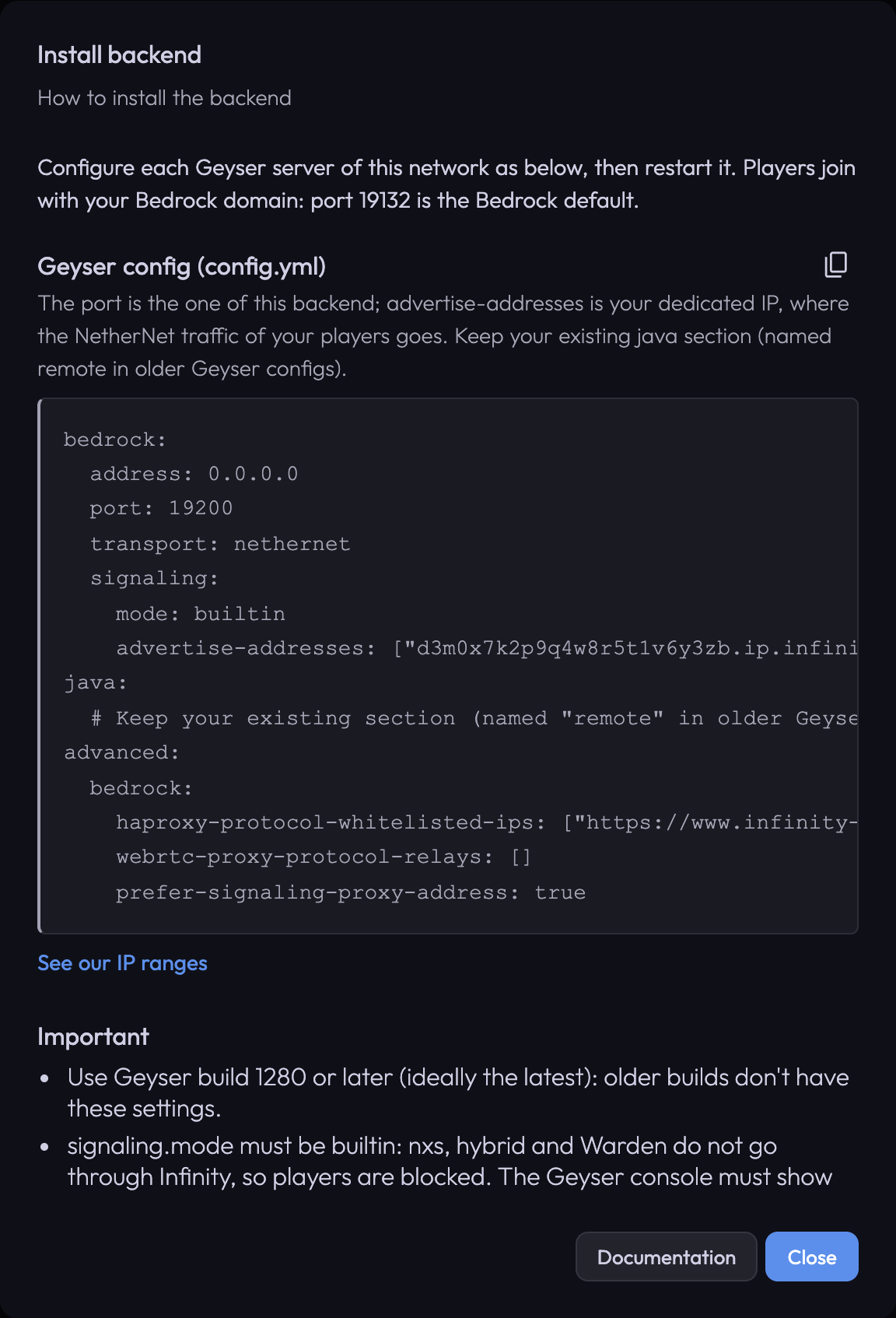
Open Geyser’s config.yml and set these keys (keep everything else as it is). This config needs Geyser build 1280 or later:
bedrock:
  address: 0.0.0.0
  port: 19200                # the port of your Geyser backend in the panel
  clone-remote-port: false
  transport: nethernet
  signaling:
    mode: builtin
    advertise-addresses: ["{uid}.ip.infinity-filter.com:19132"]   # your dedicated IP, port 19132
java:
  # Keep your existing section: it points Geyser to your Java server.
  # (Older Geyser configs call this section "remote".)
advanced:
  bedrock:
    haproxy-protocol-whitelisted-ips: ["https://www.infinity-filter.com/v4/"]
    webrtc-proxy-protocol-relays: []
    prefer-signaling-proxy-address: true
What each line does:
bedrock.address: 0.0.0.0 Listen on every network interface. NetherNet does not work if Geyser only listens on 127.0.0.1.
bedrock.port The port of your Geyser backend in the panel. Geyser uses it in TCP (handshake) and UDP (gameplay). It must not be your Java server's port.
bedrock.clone-remote-port: false Keep it false: on your Java server's port, the NetherNet handshake can't start.
bedrock.transport: nethernet Keep nethernet. Geyser 1280 removed the RakNet-only transport (a transport: raknet config is switched back to nethernet when Geyser starts). Don't use "both" behind Infinity-Filter: it needs separate UDP ports that Infinity-Filter doesn't route.
bedrock.signaling.mode: builtin The handshake must go through Infinity-Filter. The nxs and hybrid modes use an external service (Warden) that bypasses Infinity-Filter, so players are blocked.
bedrock.signaling.advertise-addresses The address Geyser gives players for the NetherNet (WebRTC) connection: your dedicated IP hostname with port 19132. Without a port, Geyser gives its own UDP port (your backend port), which is wrong behind Infinity-Filter. The panel fills it in for you.
advanced.bedrock.haproxy-protocol-whitelisted-ips Infinity-Filter sends the player's real IP on the handshake (signaling, TCP) with the PROXY protocol. Listing our IPs here turns the PROXY protocol on in Geyser, and only accepts it from Infinity-Filter. The link is our IP list; Geyser accepts IPs, IP ranges and links to plain-text lists.
advanced.bedrock.webrtc-proxy-protocol-relays: [] Empty while the NetherNet PROXY protocol (UDP) option is off (the default). Fill it with our IP list only when that option is on.
advanced.bedrock.prefer-signaling-proxy-address: true Geyser takes the player's IP from the handshake's PROXY header instead of the WebRTC (UDP) source address. It's false on a fresh install: without it, every player shows up with an Infinity-Filter IP. Set it to false only when the NetherNet PROXY protocol (UDP) option is on.
The last two lines depend on the NetherNet PROXY protocol (UDP) option of the Backends page: the config above is for the option off (the default). The panel always shows the config that matches your option.
Geyser running standalone
If Geyser runs as a standalone program (not as a plugin on your proxy) and your Java proxy accepts the PROXY protocol (which is the case when PROXY protocol is enabled on Infinity-Filter), also set advanced.java.use-haproxy-protocol: true. Geyser then forwards the Bedrock player’s real IP to your proxy, which expects that header on every connection.
If Geyser runs as a plugin on Velocity, BungeeCord or Paper, you don’t need this.
Step 6 — Open the Geyser port in TCP and UDP
NetherNet uses the Geyser port in both TCP and UDP. Before NetherNet, opening UDP was enough — check your firewall and your host’s port settings:
- Open the Geyser port (e.g.
19200) in TCP and UDP. - Recommended: only allow it from the Infinity-Filter IP ranges (the same list as in the Geyser config: https://www.infinity-filter.com/v4/).
- On a game host panel (Pterodactyl and similar), make sure the port allocation accepts both protocols.
No other program may use that port, in TCP or UDP.
Step 7 — Restart and check
Restart Geyser (or your proxy, if Geyser is a plugin). In the console, you must see:
Then check, in this order:
- 1
The certificate is active
On Network → Domains → Bedrock domains, your domain shows Active.
- 2
A phone can join
On a phone, add a server with your Bedrock domain (e.g.
bedrock.example.com) and port 19132, then join. Phones are the strictest clients: if a phone can join, every platform can. - 3
Real IPs show up
In Geyser’s console, joining players appear with their own IP, not an Infinity-Filter IP. If every player shows an Infinity-Filter IP, check
prefer-signaling-proxy-address: true(see Real player IPs).
Something doesn’t work? See Bedrock / Geyser issues.
Step 8 — Give your players the domain
Share your Bedrock domain with your players: they add a server with bedrock.example.com and port 19132 (the default — nothing to change). Players on phones and tablets can only join with a domain: the dedicated IP itself doesn’t work for them.
Switching between NetherNet and RakNet
The Geyser (Bedrock) card on Network → Backends shows the transport used by your Geyser backends. Switching applies to every Geyser backend of the network at once, requires a dedicated IP, and doesn’t disconnect players already connected.
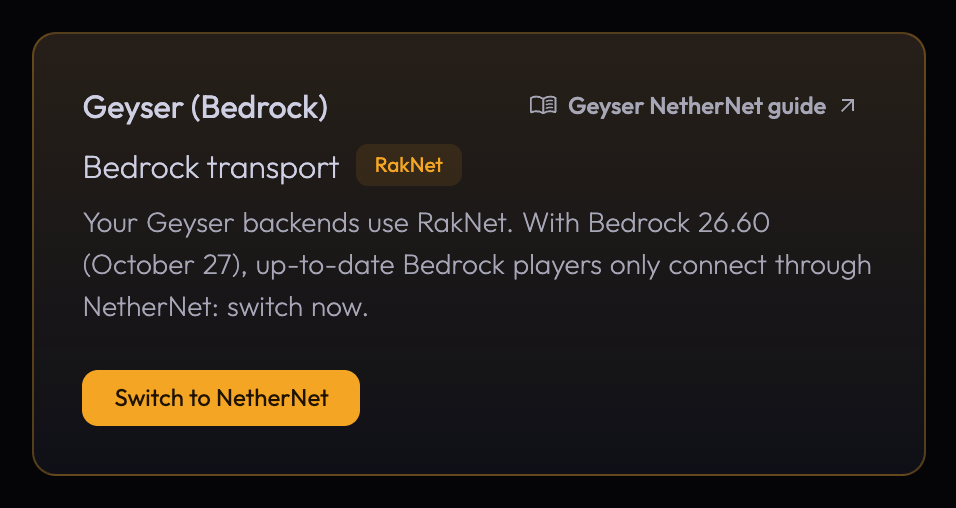
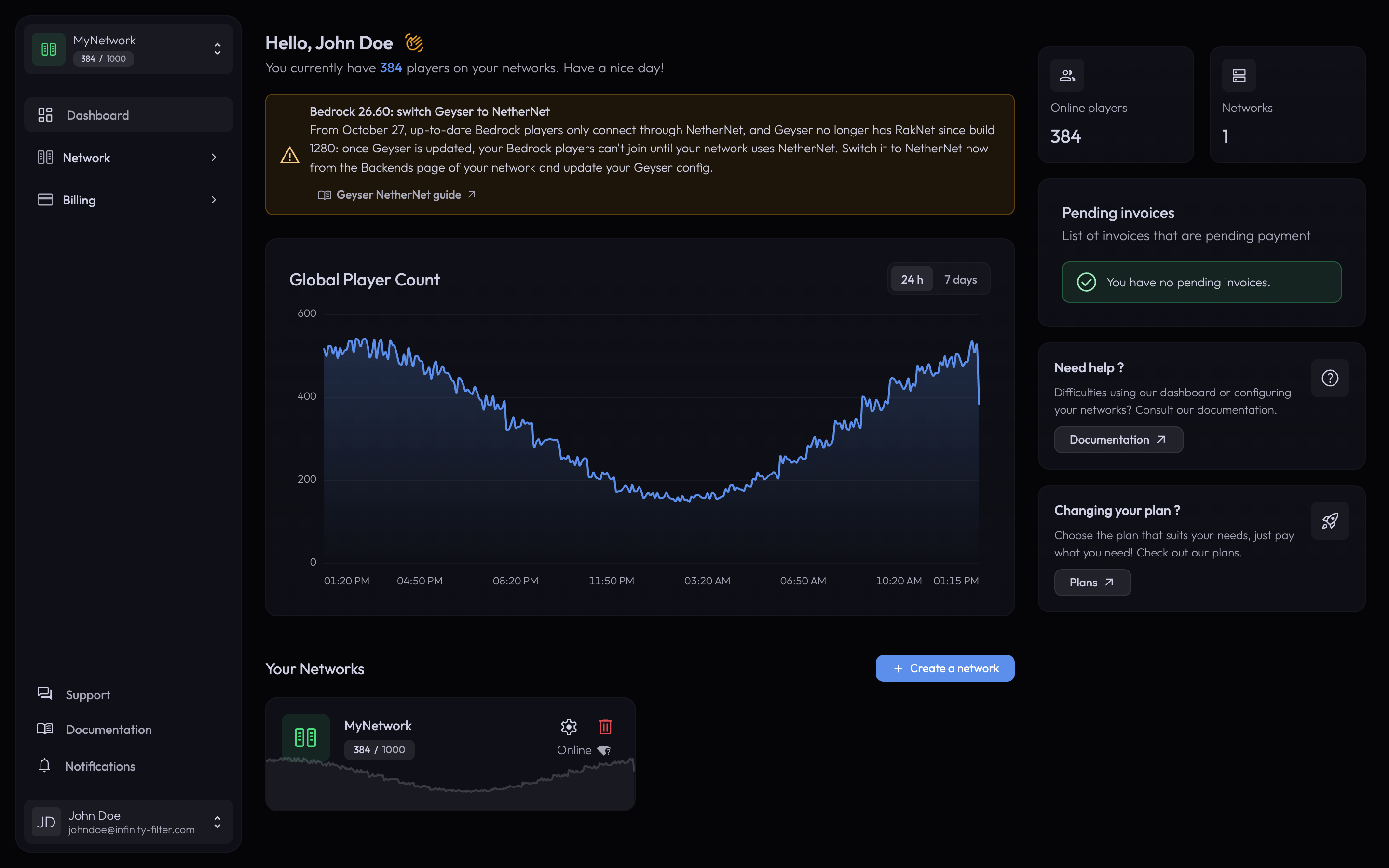
While one of your networks still uses RakNet, a reminder is also shown on your dashboard:
From RakNet to NetherNet
- 1
Update Geyser
Update Geyser to the latest build (1280 or later) on every Geyser server. Updated Geyser starts in NetherNet, so do the next steps right away.
- 2
Switch in the panel
Click Switch to NetherNet in the Geyser (Bedrock) card and confirm.
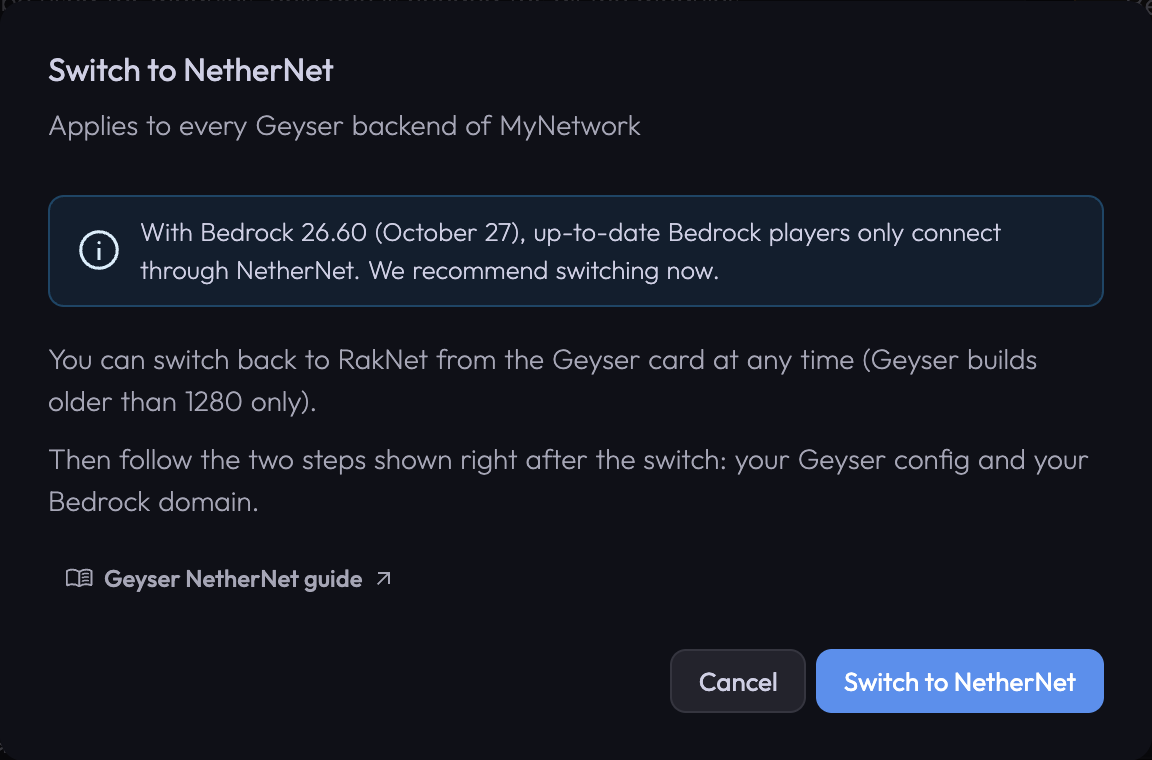
Confirm the switch: it applies to every Geyser backend of the network. Right after the switch, the panel shows the NetherNet Geyser config.
- 3
Update the Geyser config
Apply that config on every Geyser server (see Step 5) and restart them. Do it right after the switch: until Geyser restarts with the new config, Bedrock players can’t join.
- 4
Open the port in TCP
Make sure the Geyser port is open in TCP and UDP (see Step 6).
- 5
Back to RakNet
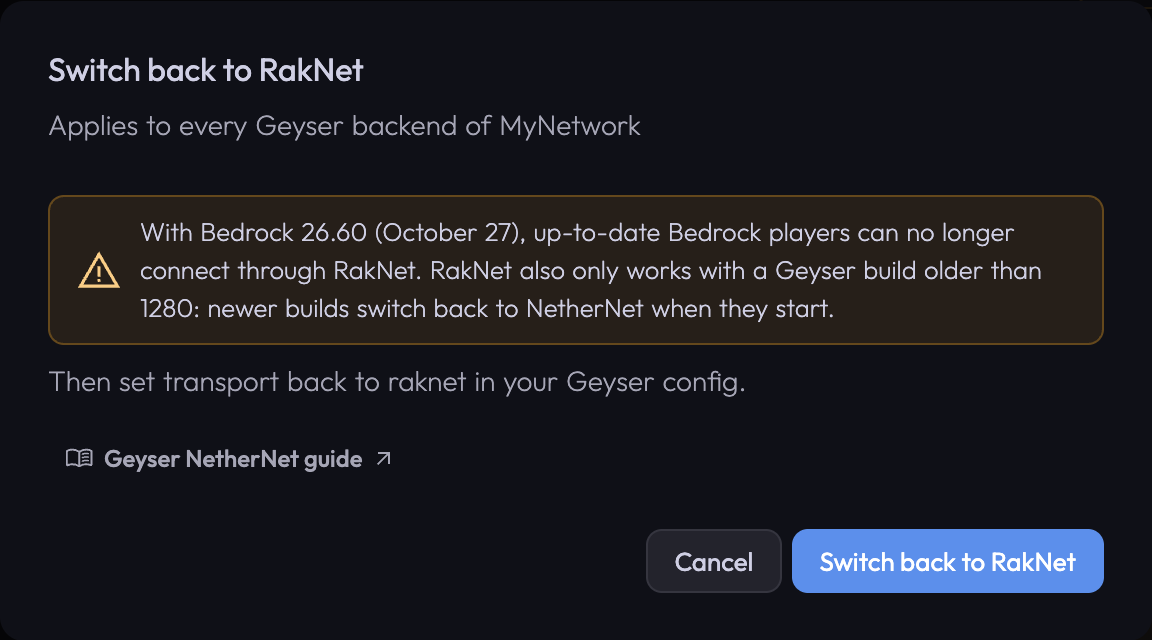
Click Switch back to RakNet and confirm, then set transport: raknet in your Geyser config and restart it. This only works with Geyser builds older than 1280: Geyser 1280 removed the RakNet-only transport and switches a transport: raknet config back to nethernet when it starts. Keep in mind that players on Bedrock 26.60 or newer can’t connect through RakNet. Your Bedrock domains are kept, ready for when you switch to NetherNet again.
For reference, the RakNet Geyser config behind Infinity-Filter (Geyser builds older than 1280 only):
bedrock:
  address: 0.0.0.0
  port: 19200                # the port of your Geyser backend in the panel
  transport: raknet
advanced:
  bedrock:
    use-haproxy-protocol: true
    haproxy-protocol-whitelisted-ips: ["https://www.infinity-filter.com/v4/"]
Several Geyser servers
A network can have up to 10 Geyser backends, all reachable through the same dedicated IP and the same Bedrock domains. Infinity-Filter spreads players between them:
NetherNet A player always lands on the same Geyser server (chosen from their IP), because the handshake and the gameplay must reach the same server. Infinity-Filter checks every Geyser server every 5 seconds and stops sending players to one that doesn't answer.
RakNet Each new connection goes to the Geyser server with the fewest players. Servers are also checked every 5 seconds.
- Every Geyser backend uses the same transport (switching applies to all of them).
- Every Geyser server must use the same config and reach the same Java network.
- In a setup with several proxies, install Geyser and Floodgate on every proxy.
- To take a Geyser server out of rotation for maintenance, disable its backend with the power button on the Backends page.
Real player IPs
- Geyser receives the player’s real IP with the PROXY protocol on the handshake (signaling, TCP) — always, whatever your options. With
prefer-signaling-proxy-address: true, Geyser uses that IP, so its console, logs and Floodgate see the right one. - Without
prefer-signaling-proxy-address: true(it’sfalseon a fresh Geyser install), Geyser takes the source address of the WebRTC (UDP) stream: every player then shows up with an Infinity-Filter IP. - With that default setup, the IP is right for joins through your Bedrock domains, but friend joins through MCXboxBroadcast show the Broadcaster’s IP. To get the right IP for every join, turn on the NetherNet PROXY protocol (UDP).
- To also pass the real IP from Geyser to your Java proxy when Geyser runs standalone, see Geyser running standalone.
NetherNet PROXY protocol (UDP)
On Network → Backends, the NetherNet PROXY protocol (UDP) card is shown when your network has a Geyser backend using NetherNet. It’s a network setting, off by default, and Infinity-Filter never turns it on by itself. It needs Geyser build 1280 or later.
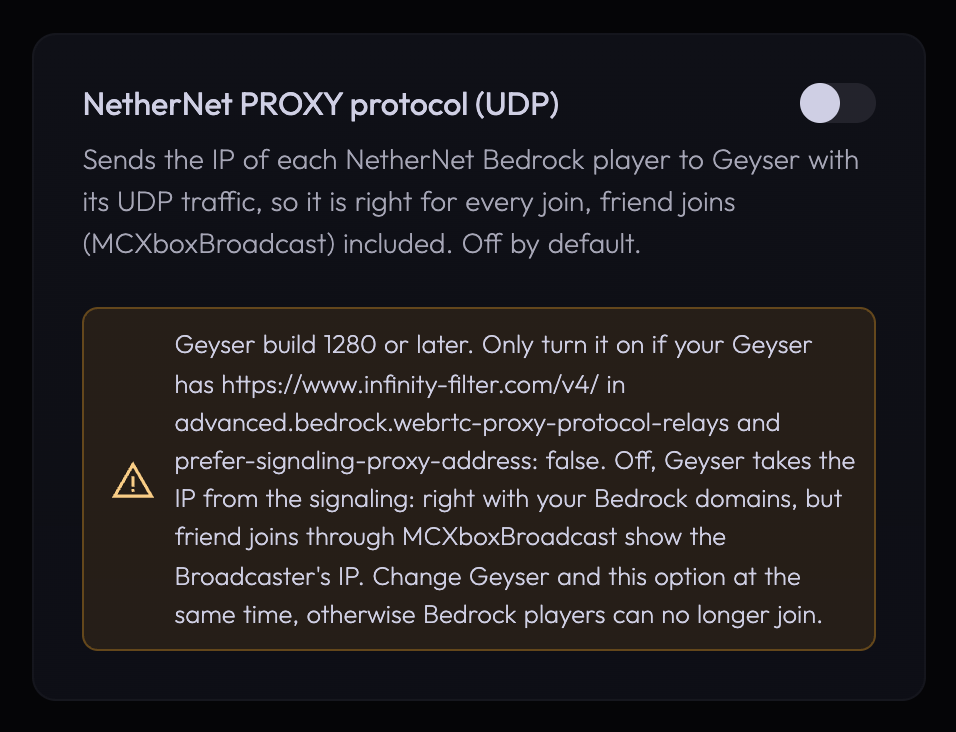
Off (default) Geyser takes the player's IP from the handshake (signaling). Right for joins through your Bedrock domains, but friend joins through MCXboxBroadcast show the Broadcaster's IP.
On Infinity-Filter adds a PROXY protocol v2 header in front of every NetherNet UDP packet. Geyser reads the player's IP from each packet, so it's right for every join, friend joins (MCXboxBroadcast) included.
The handshake (signaling, TCP) always carries the PROXY protocol, whatever the option. Turn the option on if your players join through MCXboxBroadcast (friend joins) and you need their real IP; otherwise you can leave it off.
Turning it on or off
Click the toggle on the card. A confirmation dialog (Turn on the NetherNet PROXY protocol or Turn off the NetherNet PROXY protocol) shows the Geyser config to apply: the advertise-addresses line and the advanced.bedrock section, with your dedicated IP filled in. Confirm, then put that config in every Geyser server of the network and restart them right away.
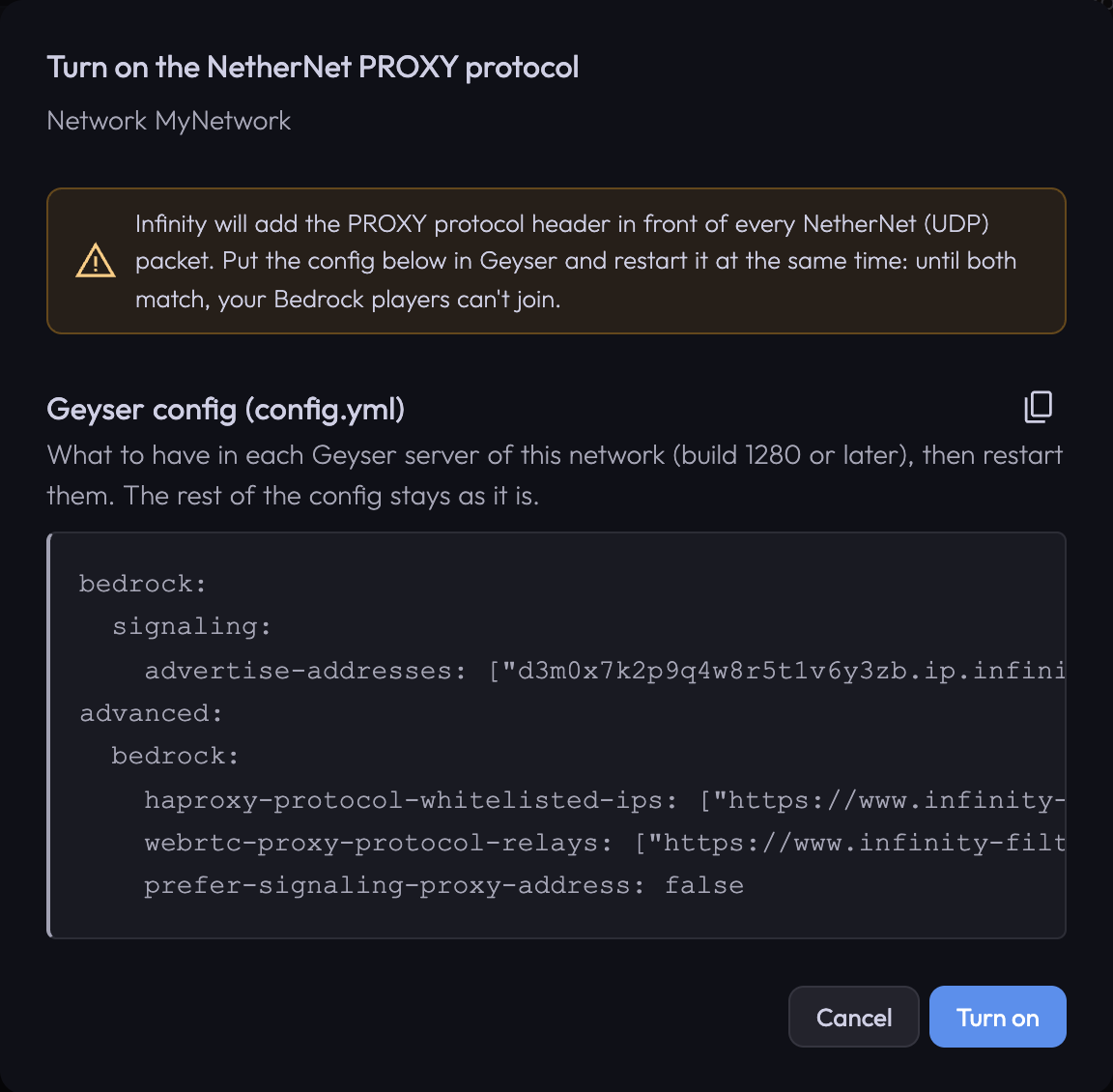
Compared to the config of Step 5, only two lines of advanced.bedrock change:
advanced:
  bedrock:
    haproxy-protocol-whitelisted-ips: ["https://www.infinity-filter.com/v4/"]
    webrtc-proxy-protocol-relays: []                                       # empty
    prefer-signaling-proxy-address: true                                   # IP from the handshake
advanced:
  bedrock:
    haproxy-protocol-whitelisted-ips: ["https://www.infinity-filter.com/v4/"]
    webrtc-proxy-protocol-relays: ["https://www.infinity-filter.com/v4/"]  # our IP list
    prefer-signaling-proxy-address: false                                  # IP from each UDP packet
Standalone Geyser with the Infinity-Filter plugin
If Geyser runs as a standalone program and you use the Infinity-Filter forwarding plugin instead of the PROXY protocol, enable Geyser support in the plugin config:
allow-external-connections: true
geyser-support: true
If you use the PROXY protocol, this section doesn’t apply.
Floodgate
Floodgate lets Bedrock players join without a Java account. Install it on the proxy only (next to Geyser), never on the backend servers behind it. Infinity-Filter doesn’t authenticate Bedrock players — that’s Floodgate’s job.
Key facts
Player port Always 19132 (the Bedrock default) on the Infinity-Filter side. The Geyser port on your server can be anything; players never type it.
Geyser build 1280 or later. Older builds don't have the NetherNet settings Infinity-Filter needs.
Transport NetherNet (TCP + UDP on the Geyser port) by default. RakNet only works for Bedrock versions older than 26.60, with Geyser builds older than 1280.
Certificates Created automatically for each Bedrock domain and renewed 30 days before they expire. Nothing to install in Geyser.
Limits Up to 10 Geyser backends and 20 Bedrock domains per network.
Mobile players Only join with a Bedrock domain whose certificate is Active — never with the IP.
HAProxy haproxy-protocol-whitelisted-ips is the name of the PROXY protocol setting in Geyser. You don't need to install HAProxy yourself.
NetherNet PROXY protocol (UDP) Off by default. Turn it on (with the matching Geyser config) to get the right IP for friend joins through MCXboxBroadcast too.
What’s next
Last updated: November 1, 2026